Auto-Exit
Open the Withdraw tab and choose Settings beside the Auto-Exit status to configure its triggers, delay and limits.
Auto-Exit closes a position automatically once the pool’s price crosses a trigger you configure. It’s useful as a stop-loss/take-profit for a position without having to watch it.
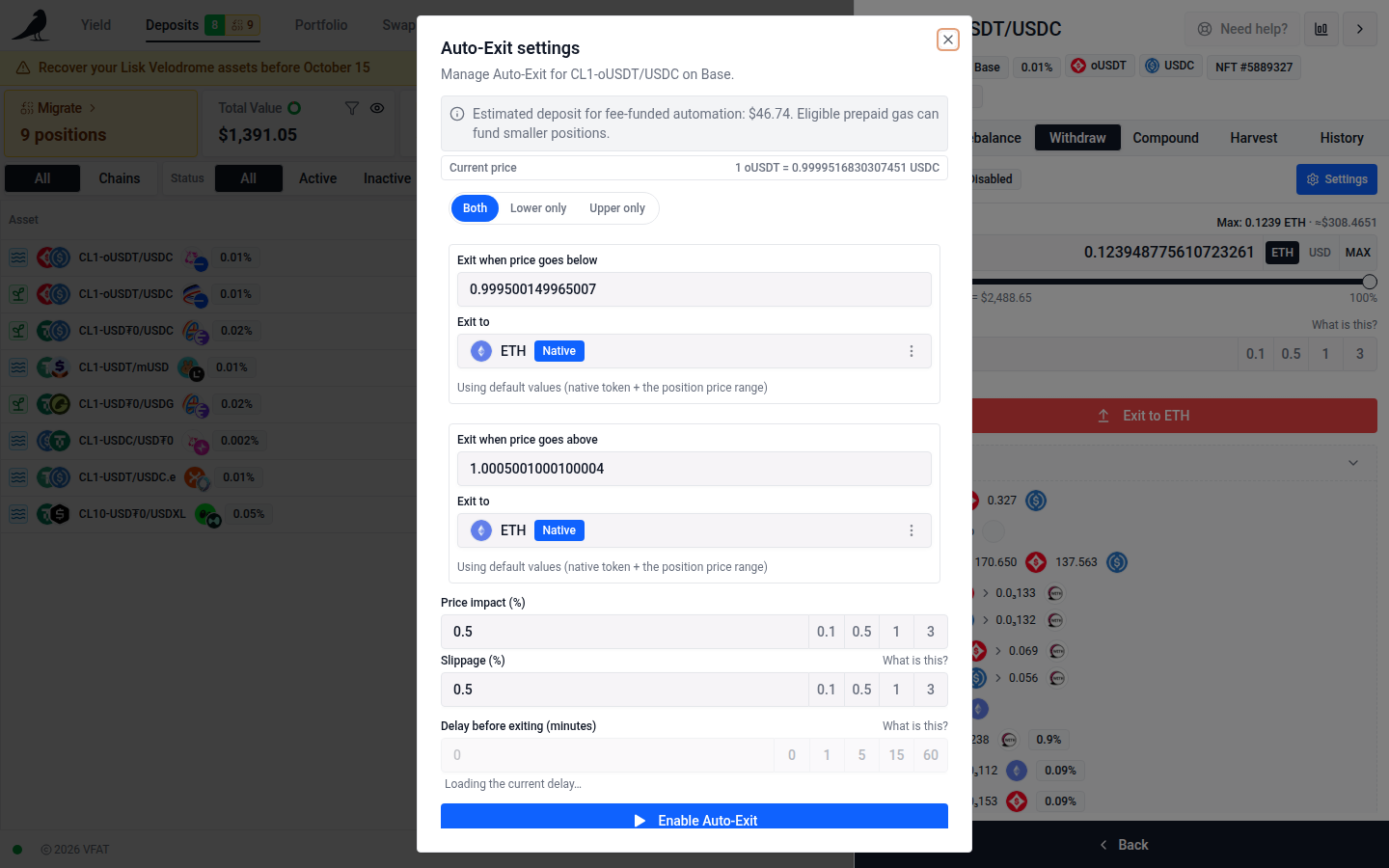
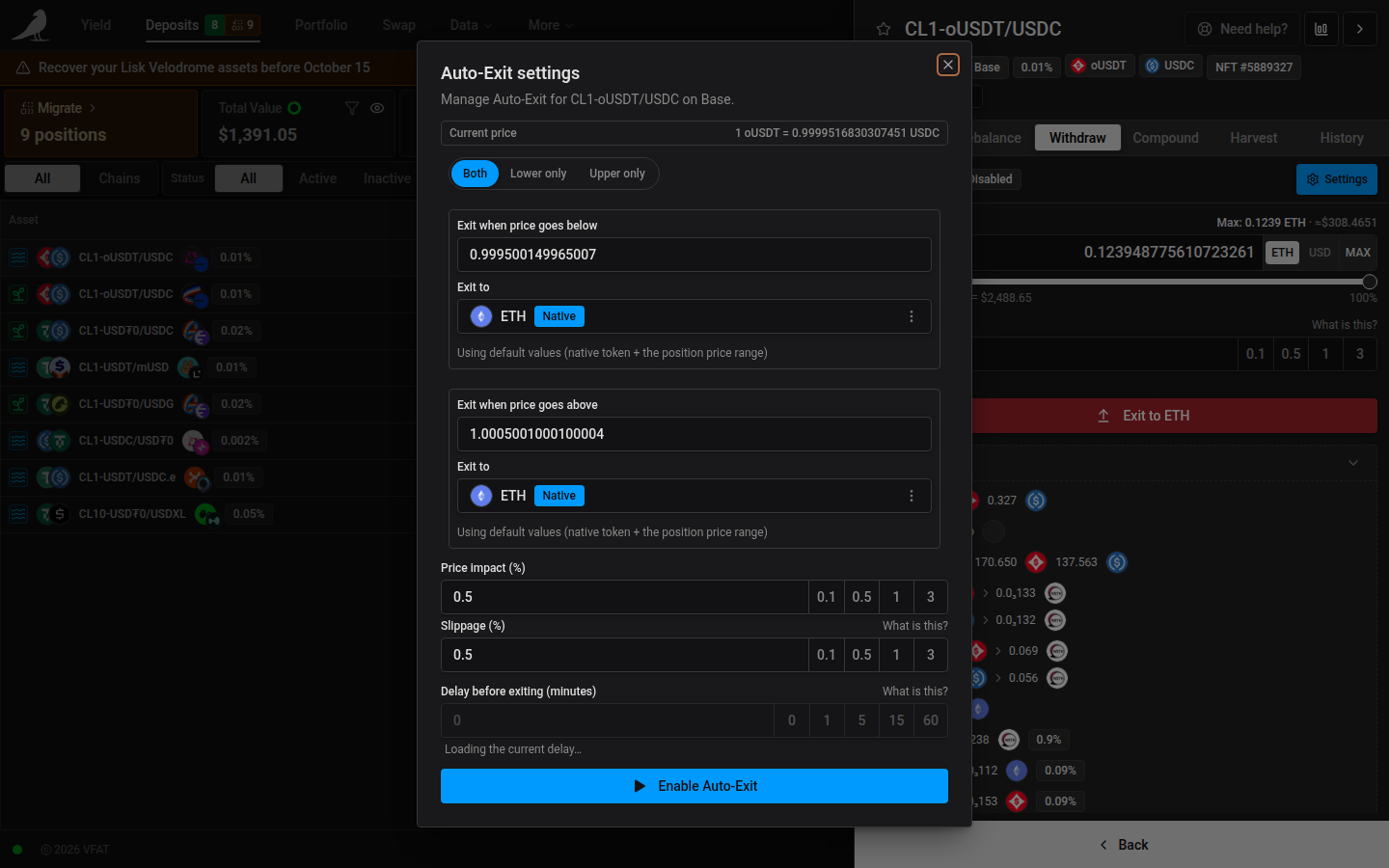
Setting bounds
You can set a lower bound, an upper bound, or both:
- Lower only: exit if price drops below your trigger
- Upper only: exit if price rises above your trigger
- Both: exit on either
For each bound you choose the token you want to receive on exit, defaulting to the chain’s native token and a trigger price around the current market price. If a bound you set is already true at the current market price, vfat.io warns you before saving that the position may exit as soon as automation next runs.
For pools with more than two tokens, use Price of and in to choose the tokens whose price Auto-Exit watches. For example, choosing AAPL in NVDA sets triggers in NVDA per AAPL. A pair without saved settings starts with triggers 5% below and above its current price. If you enter a trigger while that price is loading, your entry is preserved when the price arrives; only untouched bounds receive the defaults.
Trigger prices use the displayed token units, including pools whose tokens have different decimals. Inverting the price display swaps the lower and upper triggers and shows their reciprocals. The Lower only and Upper only controls always refer to the displayed price; existing settings keep the same enabled trigger and exit token when the display is inverted. A disabled bound stays disabled, and the status panel labels it Disabled in either price display direction.
Existing settings are read from their saved on-chain values. Opening settings or inverting the display preserves the full precision of unedited triggers. When both bounds are enabled, the lower trigger must not exceed the upper trigger. Updating the interface does not repair previously saved incorrect thresholds; review the displayed triggers and save corrected settings if needed.
Giga Classic current and trigger prices use whole-token units even when the pool’s tokens have different decimals, including volatile pool prices below 0.000001. The settings form, status panel, and transaction summary show these same units in either price direction. Previously saved Giga thresholds retain their original values; review them before updating automation.
For stable Solidly pools, the current Auto-Exit price follows the pool’s marginal exchange rate. This can differ from the ratio of its token reserves, especially when the pool is imbalanced. The current price, default triggers, and trigger status use this rate; saved thresholds are preserved.
Exit token selections populate as token data loads, without closing and reopening settings. Saved exit tokens load by address even when they are outside the visible token catalog. While metadata is pending or unavailable, updating stays disabled; saved tokens are never replaced with the native token automatically. Background refreshes preserve the trigger prices and exit token selections shown in an open form, including any edits. Reopen the settings to load changes saved elsewhere.
You can disable Auto-Exit without editing its triggers, including when saved bounds or pending edits are invalid.
Slippage and price impact
As with other automations, Auto-Exit lets you set a price-impact and slippage tolerance for the swap executed on exit.
A trigger price determines when an exit becomes eligible; it does not guarantee an execution price. Execution also depends on a successful quote and simulation, your limits, and sufficient fee revenue or eligible prepaid gas. Check the threshold estimate and automation status in the position’s settings.
Exit delay
Set Delay before exiting (minutes) from 0 to 255. A trigger must stay crossed for that many continuously observed minutes before the exit qualifies. Returning inside your triggers resets the timer, and changing a trigger while a timer runs restarts it. A delay of 0 adds no waiting period.
The delay is stored separately from the other Auto-Exit settings, so changing it is its own transaction, sent only when the value differs from the one on chain. When you enable Auto-Exit with a delay, the delay is saved first, so the new exit never runs without it. A delay chosen while depositing or moving into a new position is saved in a follow-up transaction once the deposit confirms, because the new position does not exist until then. If that position cannot be identified, set the delay from its Auto-Exit settings.
The settings initially show the cached delay, then confirm it on chain. An explicit delay selection is checked again before saving, including when that confirmation is still loading or failed. Disabling Auto-Exit keeps the saved delay, and it applies again when you re-enable Auto-Exit. On chains without delay support the field is not shown.
If an NFT is rebalanced while you are saving, the delay step checks that the position is still active before sending and after confirmation. If the position has changed, refresh your positions and confirm the delay from the current position’s Auto-Exit settings. A confirmed transaction on an old NFT does not mean the delay was applied to its replacement.
While a timer runs, the Auto-Exit Status card shows elapsed and required minutes, progress, the time the exit becomes eligible, and any reported clock resets. When the price returns inside your triggers, the card shows Back inside triggers until the timer snapshot refreshes. Delay met means the delay requirement is satisfied; the exit still has to pass the remaining execution checks.
Availability
Auto-Exit is configured per position. Both regular LP positions and concentrated-liquidity (NFT) positions have their own configuration form, since NFT positions track a price range rather than a single token amount. It’s available wherever the chain’s Sickle contract version supports it; on chains where it isn’t yet available, the option is shown as unavailable rather than hidden.
Like other automation types, enabling Auto-Exit for the first time on a chain requires enabling the general Automation setting for that chain first.